Vetra Studio
Vetra Studio is the browser UI for the Vetra agent. You chat with the agent, watch it work across the four-phase product cycle (Ideate → Specify → Build → Deploy), and see a live preview of the product it builds.
Each Studio runs as a dedicated cloud agent tied to your identity. Vetra provisions an isolated environment that hosts the agent, its workspace, and the preview services.
What you can build
With the Vetra agent you build local-first, AI-ready, specification-driven products and platforms:
- Open-source, decentralized back-ends.
- SaaS, ERP, CMS, or CRM applications.
- Structured-data, document-centric systems with a built-in GraphQL API.
Getting started
Vetra Studio is in pre-alpha. You reach it with an early-access code from Powerhouse.
- Open vetra.io and log in with your wallet (via Renown).
- Click Vetra Studio in the top-right header. This opens your Products dashboard at
/user.
If your account is not yet enabled, /user shows the early-access gate ("Vetra Studio — Early access — choose how you'd like to get started") with three paths:
- I have an invite code — paste the code and click Get Access.
- I don't have a code — join the waitlist by email, or Request a code on Discord.
- Run it locally — no code needed; run Vetra Studio yourself with the
vetraCLI (see Running Vetra Studio locally below).
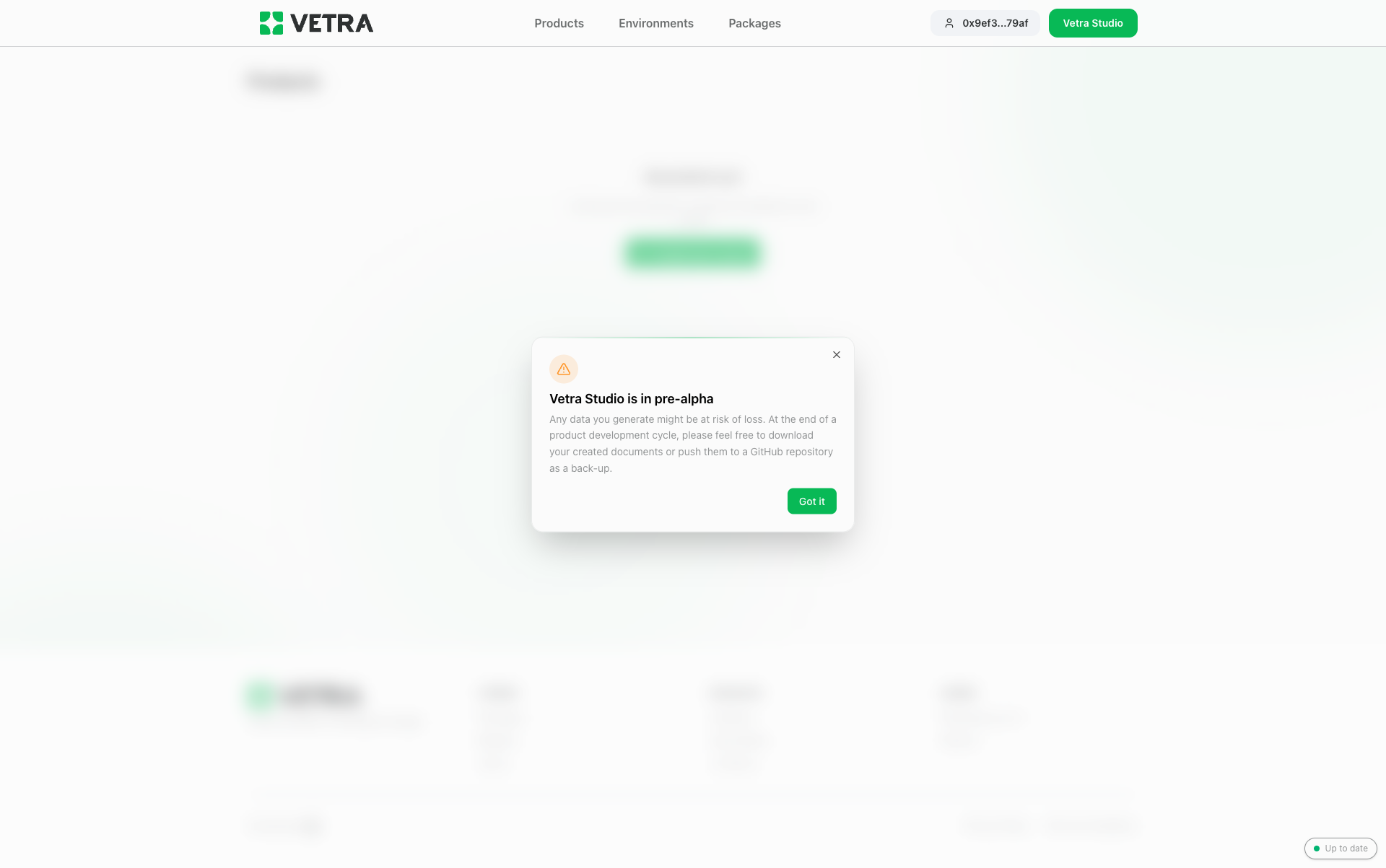
The first time you enter, a notice reminds you the product is early:
Create a studio
On the Products dashboard, click Create new product. With an invite code the studio provisions right away — the API key that powers the agent is supplied for you behind the code, so there is no key to enter.
The product card moves through Provisioning… (not yet openable) to Ready. Click Open → to launch the studio in a new tab.
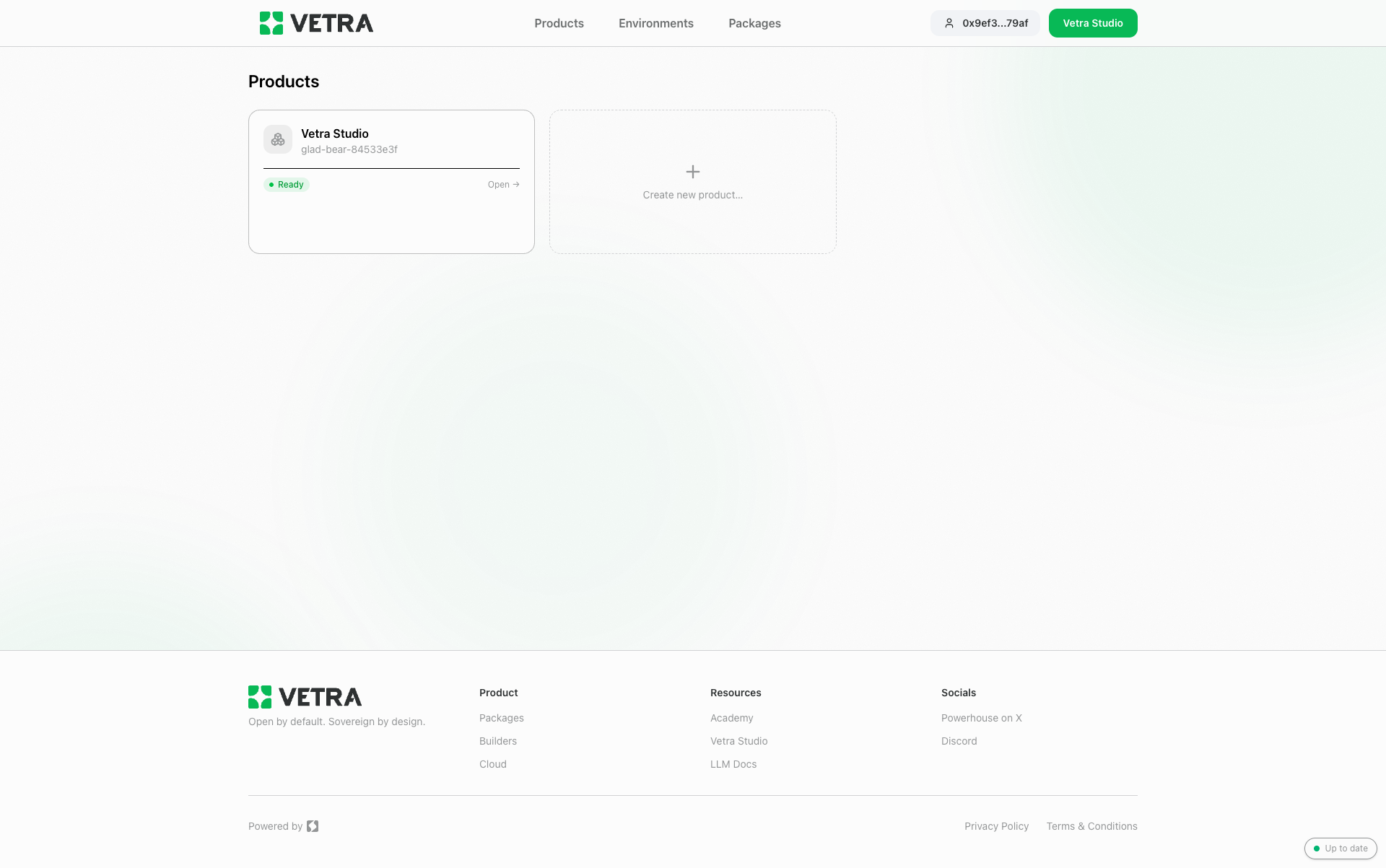
Each product is one Vetra Studio instance running on its own subdomain (<slug>.vetra.io). Opening it lands you in Powerhouse Connect at <slug>.vetra.io/d/<drive-id>.
The layout
A studio opens in Powerhouse Connect with two panes:
- Chat pane (left): lists chat sessions, and renders the active session's message history when one is open.
- Resize handle (vertical strip): drag to adjust pane width.
- Main pane (right): shows the phase-cycle cards by default, and opens a phase section, a document, or the build preview when you navigate.
- Toolbar (far left): Home, Open Account (Renown), and Settings.
- Main-pane top bar: a Version info button, an Authorize agent button (see Authorizing the agent), and the Auto-follow agent checkbox.
- Auto-follow agent (on by default): when checked, the main pane follows the agent and opens documents as the agent creates them.
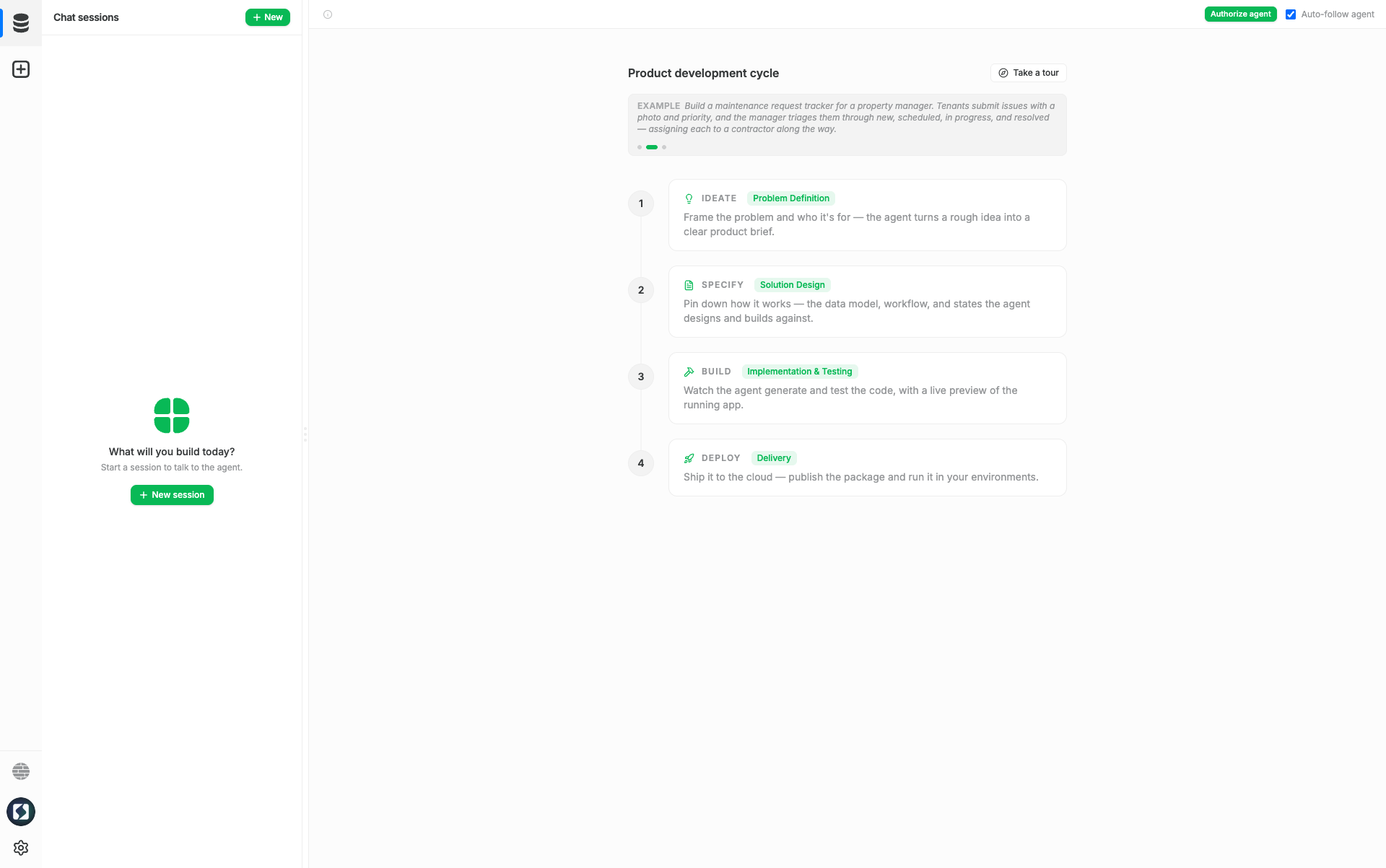
The main pane opens on Product development cycle. Alongside the four phase cards it offers a Take a tour button and an example-prompt carousel — cycle through the sample prompts and Copy example prompt to seed your first session.
Creating a session
- In the chat pane, click New (top-right) or New session (empty state).
- A new chat session document is created in the drive and opened immediately.
- Type your first message and press Enter (or click the send button).
Sessions persist across restarts. They are CRDT documents stored in the studio's reactor.
Sessions are scoped to your identity: signing in with a different identity shows a different session list.
Talking to the agent
The chat session is how you direct the agent. Type a message; the agent responds and runs tools. Each tool call appears inline as an expandable card showing its name, status, and a result preview. While the agent works, the send button becomes Stop.
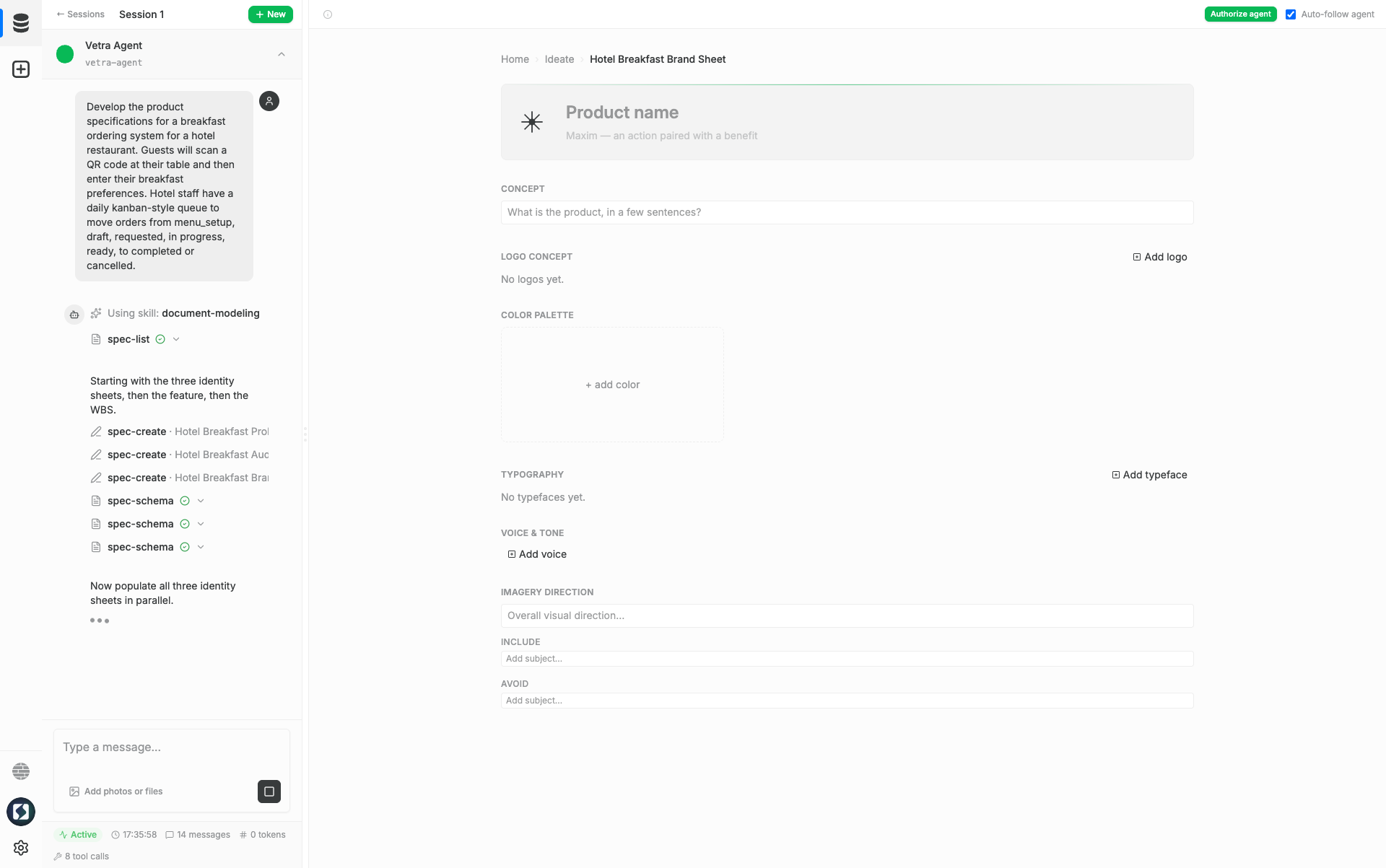
Tools you will see include:
Using skill: <name>/Reading skill: <name>— the agent loads a named skill (such asdocument-modeling,document-editor-creation,drive-app-creation) and reads its reference docs.spec-create,spec-generate,spec-update,spec-list,spec-schema— create, generate, and edit specification documents. Create and update cards name the document, for examplespec-create · Hotel Breakfast Problem Sheet.reactor-project-init,reactor-project-start,reactor-project-check,reactor-project-ls,reactor-project-ps— scaffold, run, and inspect the project that hosts the preview.- Workspace actions in the agent's project appear as Read, Write, Edit File, List, and Grep cards with the file path.
spec-preview-show— surface a running app in the BUILD pane.
A status bar at the bottom of the chat shows the session state: Active, start time, message count, token count, and tool-call count.
The agent can:
- Create and iterate on spec documents (problem, audience, and brand sheets, a feature, and a work breakdown structure).
- Design document models and generate their reducers, editors, and apps.
- Scaffold a reactor project that hosts a live editor preview.
- Surface a preview in the BUILD pane and, when you're ready, publish to the cloud.
The phase cycle
The main pane shows four numbered phase cards when no section is open. Click a card to open its section, or navigate with the breadcrumb (Home › <Phase>).
| Phase | What happens there |
|---|---|
| 1 · Ideate — Problem Definition | Frame the problem and audience — problem, audience, and brand sheets, a feature, a WBS |
| 2 · Specify — Solution Design | Pin down the data model, workflow, and states — document models grouped by project |
| 3 · Build — Implementation & Testing | Watch the agent generate and test code, with a live preview of the running app |
| 4 · Deploy — Delivery | Publish the package and run it in your cloud environments |
A card's availability depends on progress: BUILD shows a preview only after the agent scaffolds a project, and DEPLOY needs you to sign in with Renown.
Ideate and Specify
The Ideate and Specify sections hold the documents the agent writes. In Ideate the agent frames the product — a problem sheet, an audience sheet, a brand sheet, a feature, and a work breakdown structure. Specify then groups the document models into projects: each project is a folder of specs and models.
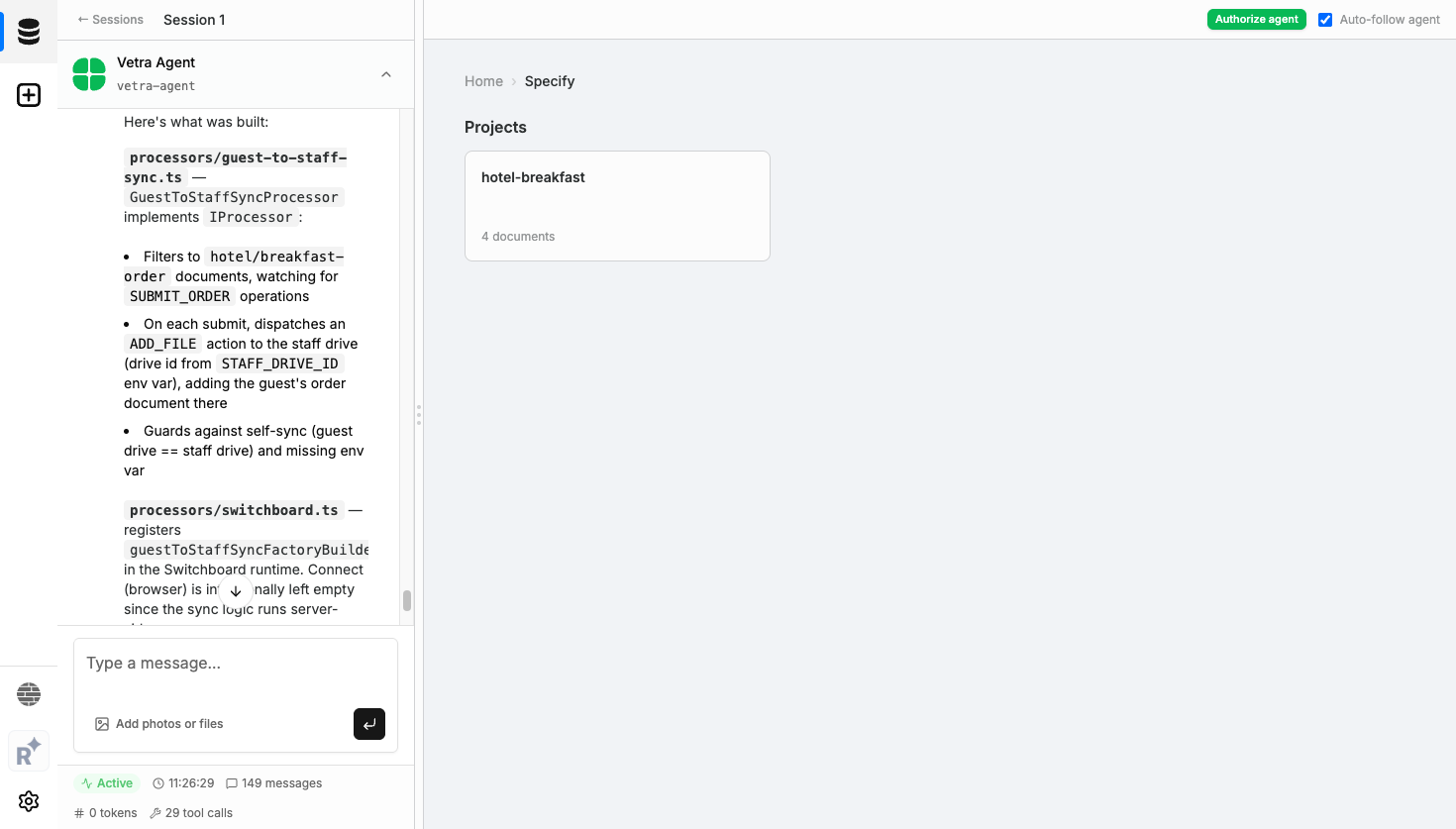
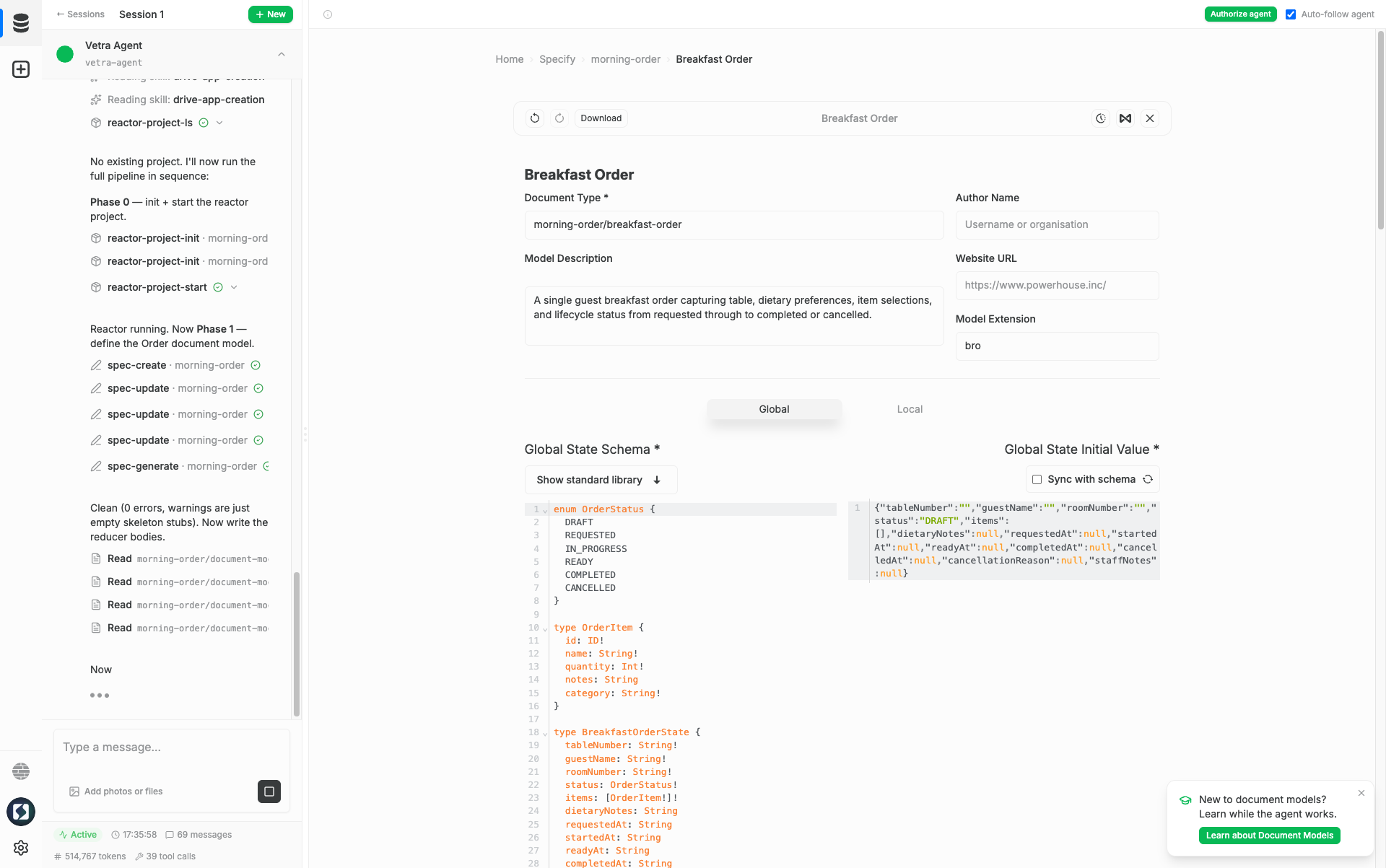
With Auto-follow agent on, a document opens in the main pane as the agent creates it, so you watch each sheet and model take shape without interrupting the run.
A document editor has a Download action and a revision-history view. For a document model you edit its Document Type, Description, Author, Website, and Model Extension, and its state schema under Global / Local tabs (with Show standard library for reference types).
The BUILD preview
The BUILD pane deep-links into the reactor project the agent spawned for the session. The sequence:
- The agent calls
reactor-project-initandreactor-project-start— visible as tool cards in the chat. - The dev server warms up (typically 10–30 seconds) and the project reports ready.
- The agent calls
spec-preview-showwith a project, drive, and app reference to surface the app in the BUILD pane. - Any code the agent generates after that is picked up by Vite HMR — the preview updates without a full reload.
Until the agent surfaces a preview, the pane reads "No preview yet — The BUILD preview appears once the agent scaffolds a project for this session." A running reactor project is not enough on its own; the agent has to surface a preview.
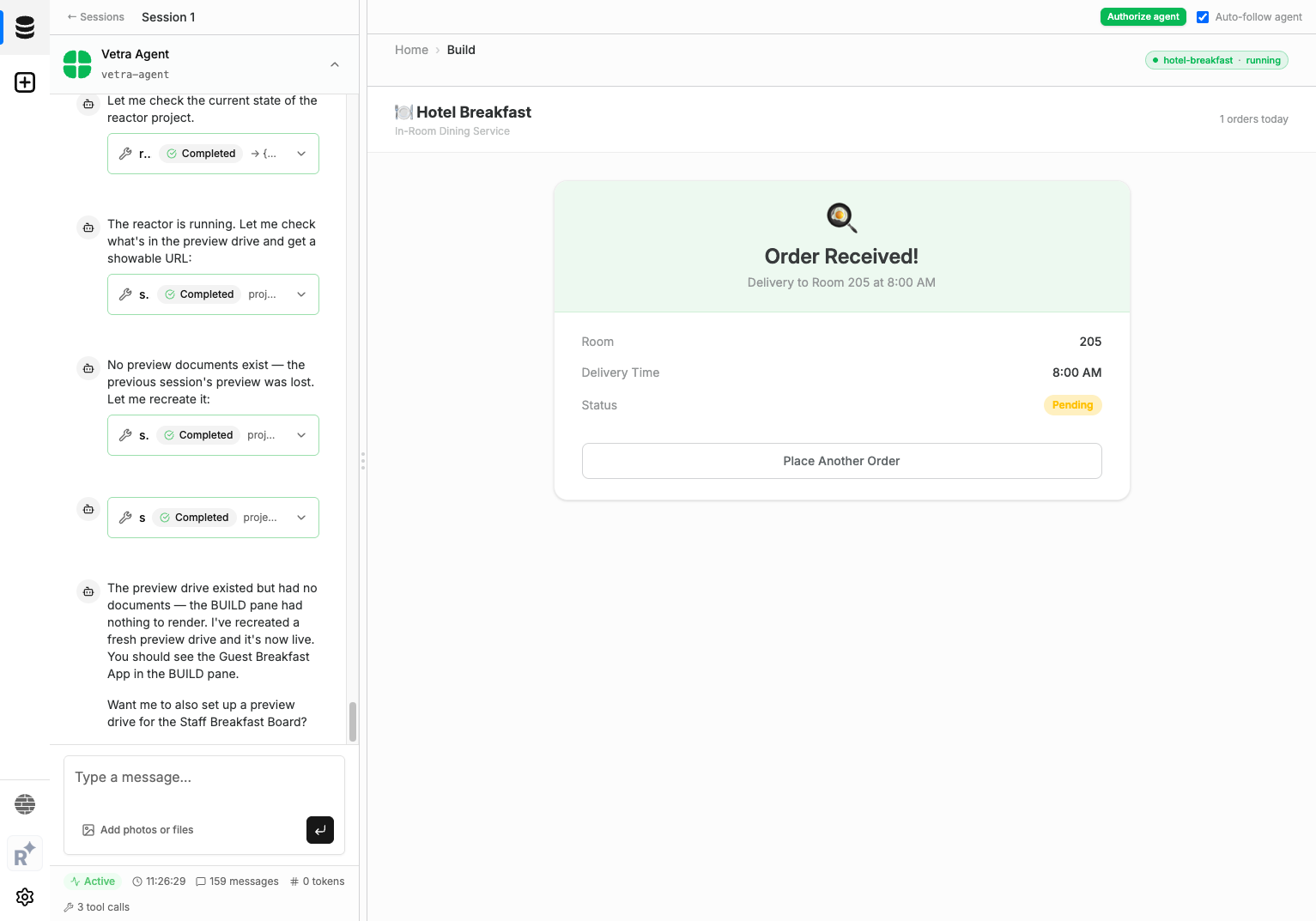
The BUILD preview runs the editors and apps in a local dev reactor. Processors do not run here — they execute server-side in Switchboard once the studio is deployed. Preview drives are also ephemeral and reset between sessions. So an action wired through a processor (for example, syncing a guest order to a staff board) only takes effect after you deploy. Because it is pre-alpha, the preview does not always mount; if it stays on "No preview yet," deploy the app to see it running end to end.
Use the breadcrumb at the top of the pane to navigate back to the phase-cycle home.
Deploy
The Deploy section publishes your project's package to Vetra Cloud. Sign in with Renown first (the top bar then shows your address with a Disconnect button).
Deploy opens on a Projects list. Each project shows a status (Not deployed, Needs release) and a Set up deploy button. Click it to open the deploy detail:
- Under Available environments, the project version (for example
morning-order@1.0.0) is listed. A new project isn't running anywhere yet. - Click New environment, give it a name, and click Create & deploy. A
vetra.iosubdomain is assigned automatically. - The environment rolls out: Approved → Deploying → Ready. When it reports Up to date · v1.0.0, the deploy is live.
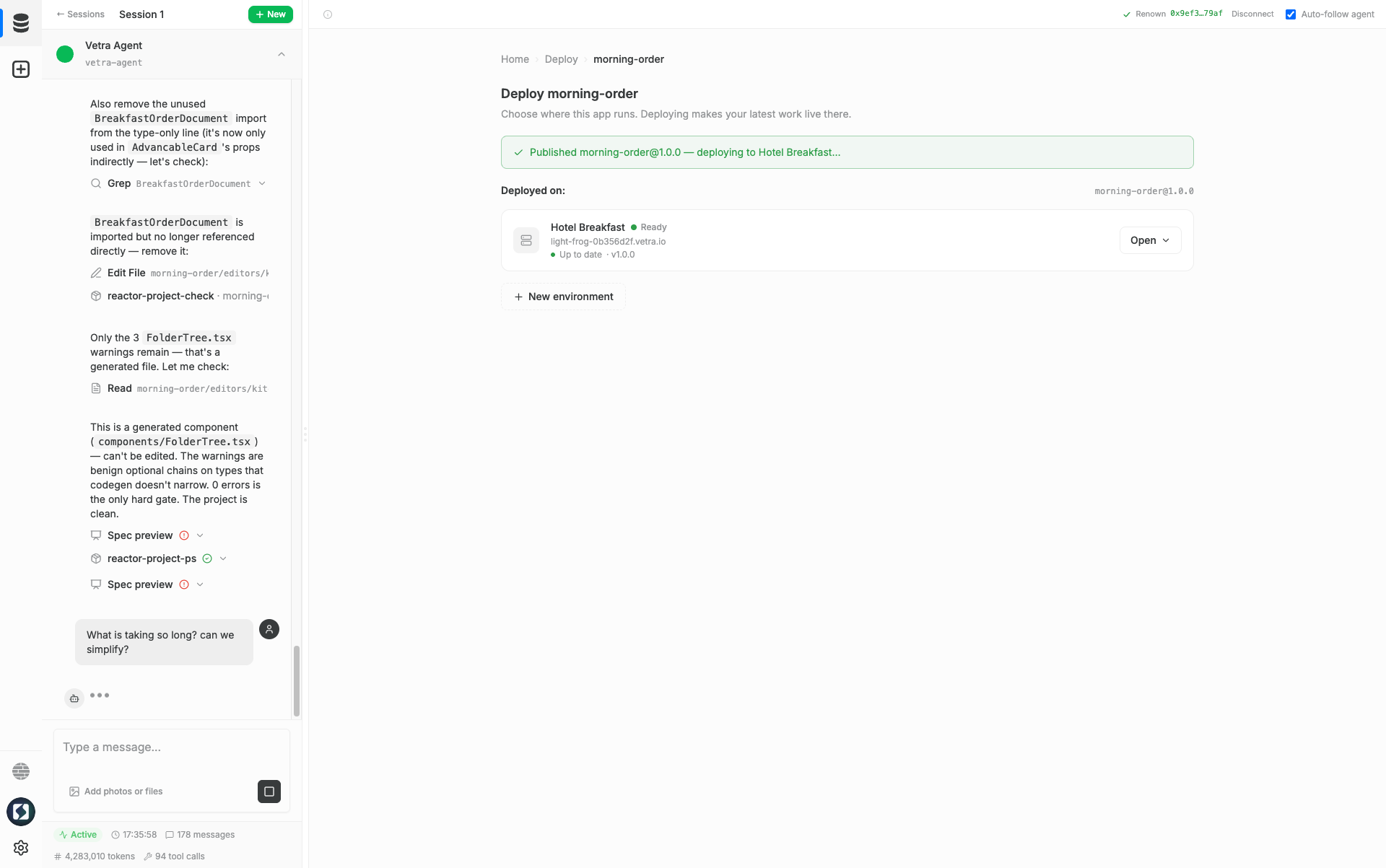
Each environment runs Powerhouse Connect at <env-slug>-connect.vetra.io and Switchboard (the GraphQL API) at <env-slug>-switchboard.vetra.io/graphql. Use Open, Connect, and Switchboard on the environment card to reach them.
For environment management, services, sizing, and versions, see Vetra Cloud.
Authorizing the agent
To let the agent sign actions with your identity, click Authorize agent. This runs the Renown flow that authorizes the studio's subdomain to sign actions on your behalf. Once confirmed, the top bar shows Renown with your address and a Disconnect button.
Authorization is independent of chat sessions, and it switches the studio's active identity from a generated did:key to your wallet identity (did:pkh). Because sessions are scoped per identity, switching identity changes which sessions the list shows.
Session URLs
The studio keeps its state in the URL, under <slug>.vetra.io/d/<drive-id>:
- The selected session id is the
?session=<id>query parameter. Sharing the URL opens the same session in another tab or browser; browser back/forward navigates between sessions; reloading restores the selection. - When the agent opens a document, the URL also carries a
doc=<id>parameter.
Glossary
Chat session — a CRDT document that stores message history, agent tool calls, and tool results for one conversation thread.
Phase cycle — the four-card home view (Ideate / Specify / Build / Deploy). Each card is a stage of the product-development workflow.
Project — a folder of related specs and document models, shown in the Specify section.
Reactor project — a dev-mode process the agent spawns to host a live editor preview. One per active build in a chat session.
Preview drive — a drive inside a reactor project, used for ephemeral preview document instances.
Renown — the identity layer that lets the studio sign actions on behalf of your wallet without exposing your private key.
Running Vetra Studio locally
Prefer to run everything on your own machine? Vetra Studio ships as a CLI you run yourself — no invite code needed. You bring your own Anthropic API key (the agent runs on Claude).
Prerequisites: Node ≥ 24 on macOS or Linux. pnpm is optional — the installer uses it if present, otherwise offers to install it and falls back to npm.
Quick install
One command installs the ph and vetra CLIs and offers to launch the agent:
curl -fsSL https://get.vetra.io | sh
The first launch sets up Claude auth (bring your own Anthropic API key), then
prints the Studio URL — open http://localhost:8090/
in a browser. Start the agent again any time with vetra.
From source
Clone vetra-cli, then install and start the agent:
pnpm install
pnpm dev            # interactive agent REPL + embedded Reactor and Switchboard
Authenticate the agent once:
export ANTHROPIC_API_KEY=sk-ant-...
When the agent starts a build, the logs print
Vetra Studio: http://localhost:8090/d/<driveId> — open that URL to see your
work live, and iterate by continuing the conversation. To wipe the local dev
workspace and start clean, run pnpm dev:reset.
Service ports
A single vetra process runs the REPL, an embedded Reactor, and an embedded
Switchboard. It reserves three ports with no fallback, so free them first if
they are already in use:
| Service | Port | Purpose |
|---|---|---|
| Vetra Studio (proxy) | 8090 | Browser entry point (the URL you open) |
| Connect | 27370 | Editor front-end |
| Switchboard | 59220 | GraphQL API |