Vetra Cloud
Vetra Cloud is the hosted infrastructure layer for Powerhouse applications. It lets you spin up a personal cloud environment that runs Powerhouse Connect (the user-facing document editor) and Powerhouse Switchboard (the backend GraphQL server) — and extend them with packages from the Vetra registry.
Getting Started
1. Connect Your Wallet
Navigate to the Cloud section in Vetra and authenticate with your Ethereum wallet via Renown. Renown lets Connect sign operations on behalf of your on-chain identity without exposing your private key.
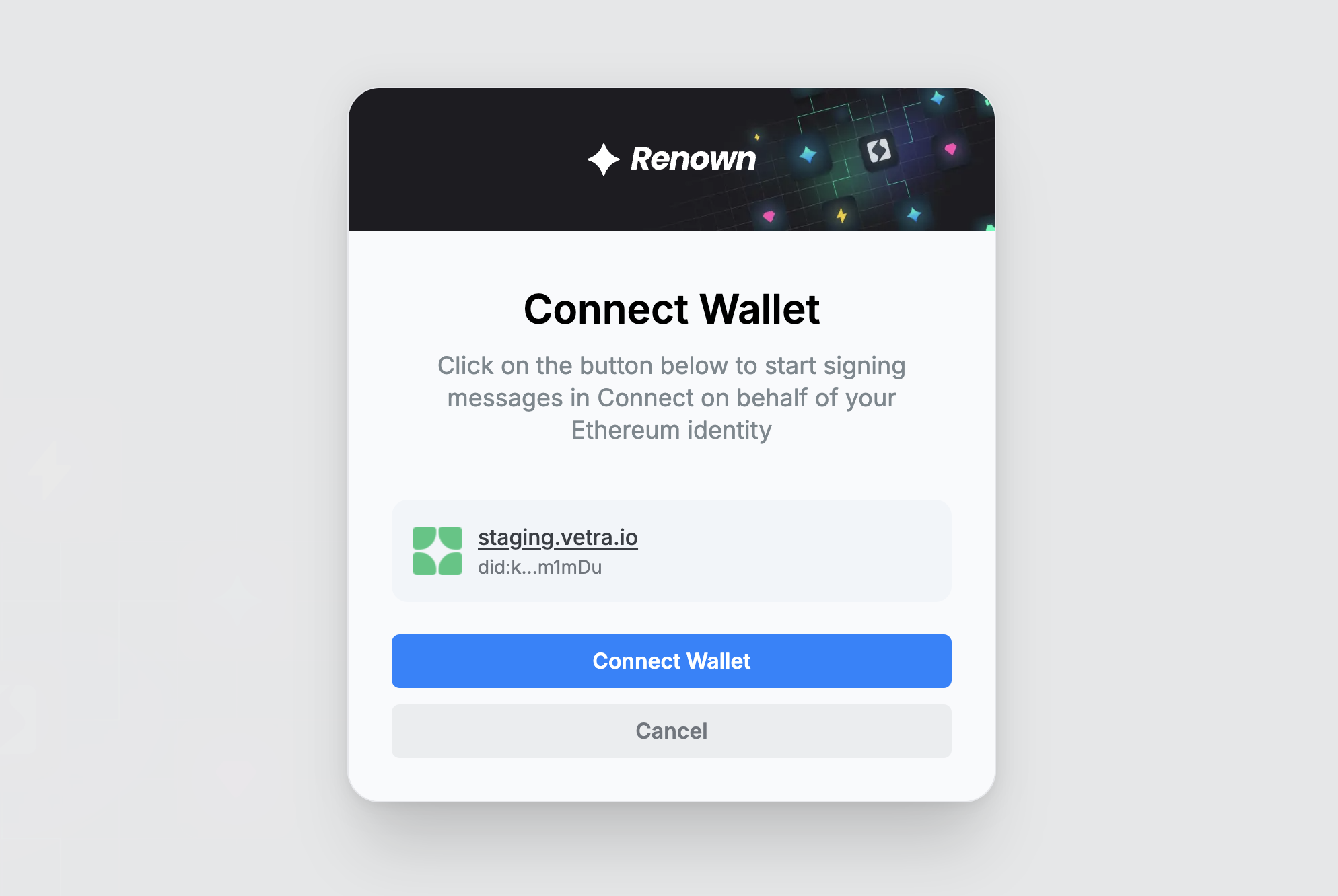
2. Create an Environment
After authenticating, create a new environment by giving it a name. Each environment gets its own subdomain (e.g. my-env.vetra.io) and runs its own isolated set of services.
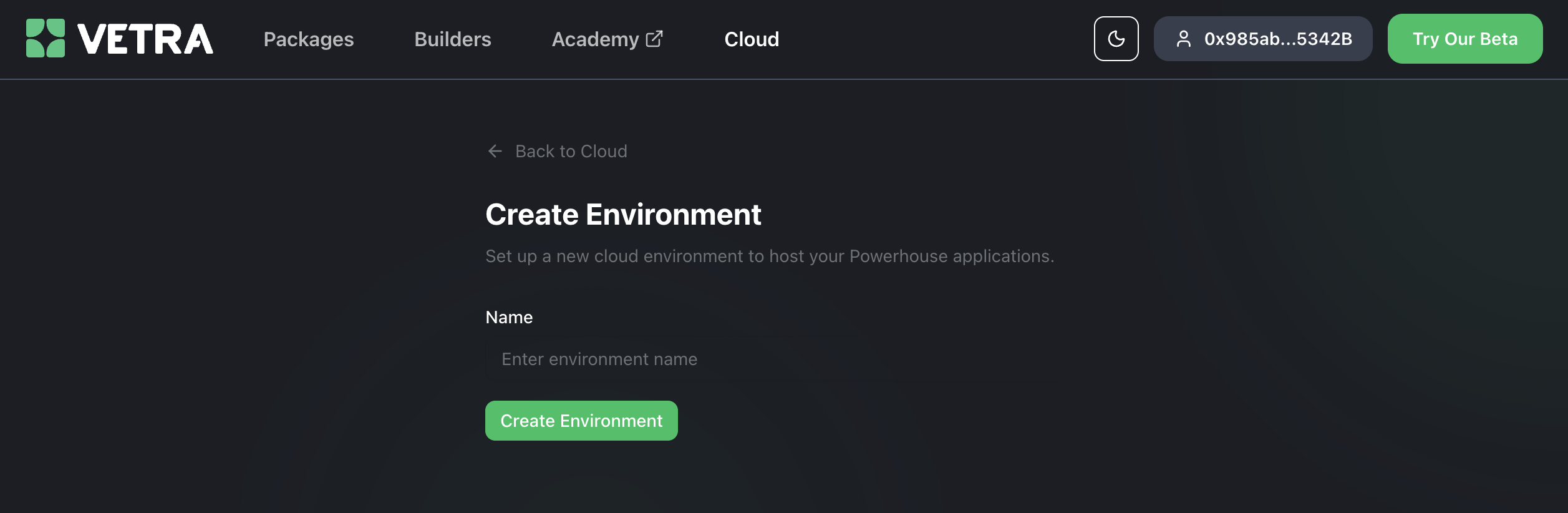
3. Configure Services
Inside your environment you can enable and configure three services:
| Service | Description |
|---|---|
| Powerhouse Connect | The document-editor UI served at connect.<env>.vetra.io |
| Powerhouse Switchboard | The GraphQL API server at switchboard.<env>.vetra.io/graphql |
| Powerhouse Fusion | Optional data-fusion layer (disabled by default) |
Use the Size dropdown to pick the compute tier for each service and toggle it on or off with the switch on the right.
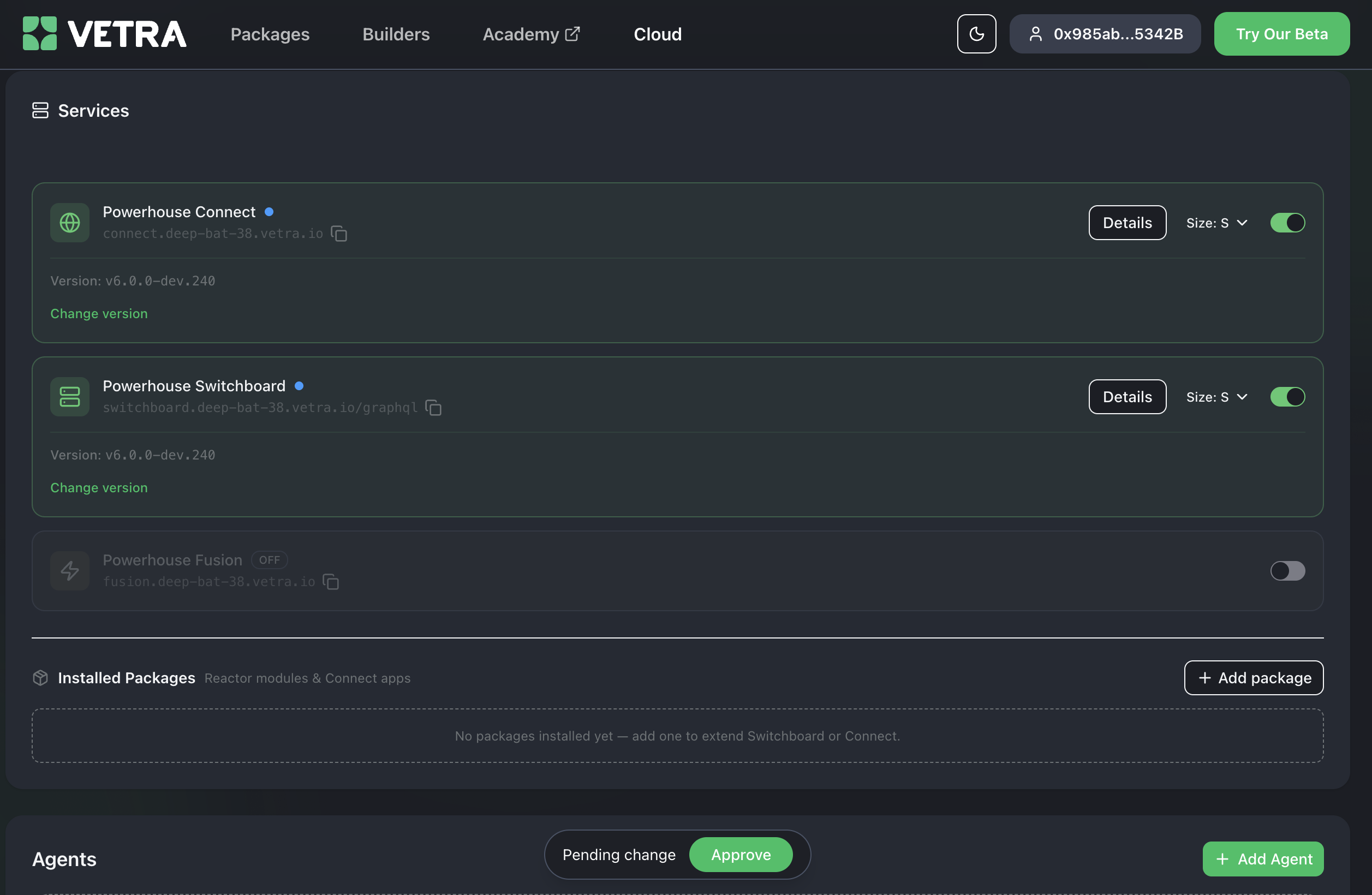
4. Select a Version
Each service shows its currently pinned version. Click Change version (or Update All when updates are available) to pin Connect and Switchboard to a specific release.
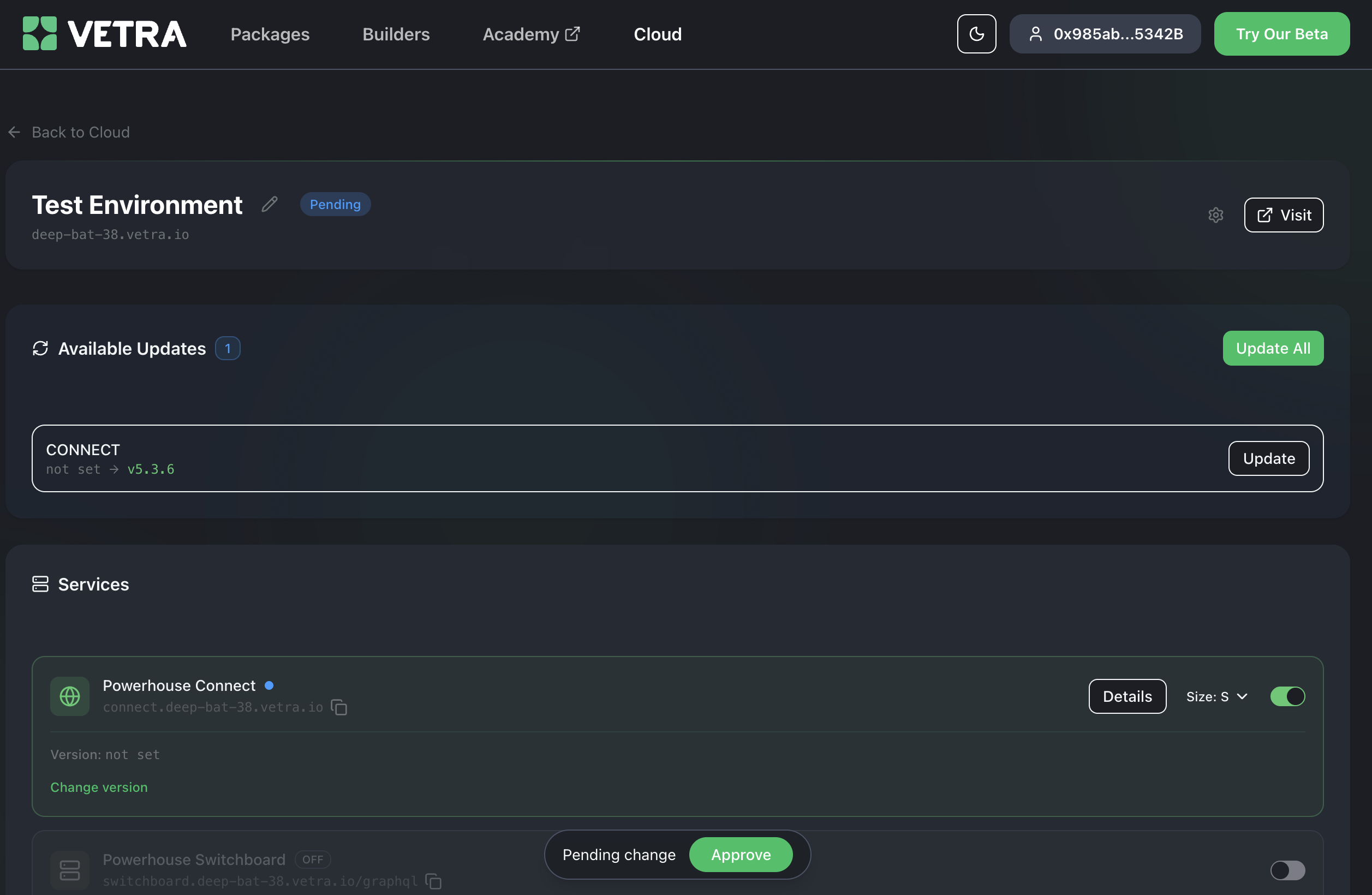
5. Install Packages
Packages extend Connect and Switchboard with additional document models, editors, and reactor modules. Click + Add package in the Installed Packages section, then search for a package by name.
Available packages include community and official Powerhouse packages such as:
@powerhousedao/builder-profile@powerhousedao/contributor-billing@powerhousedao/knowledge-note@arbitrum/arbgrants
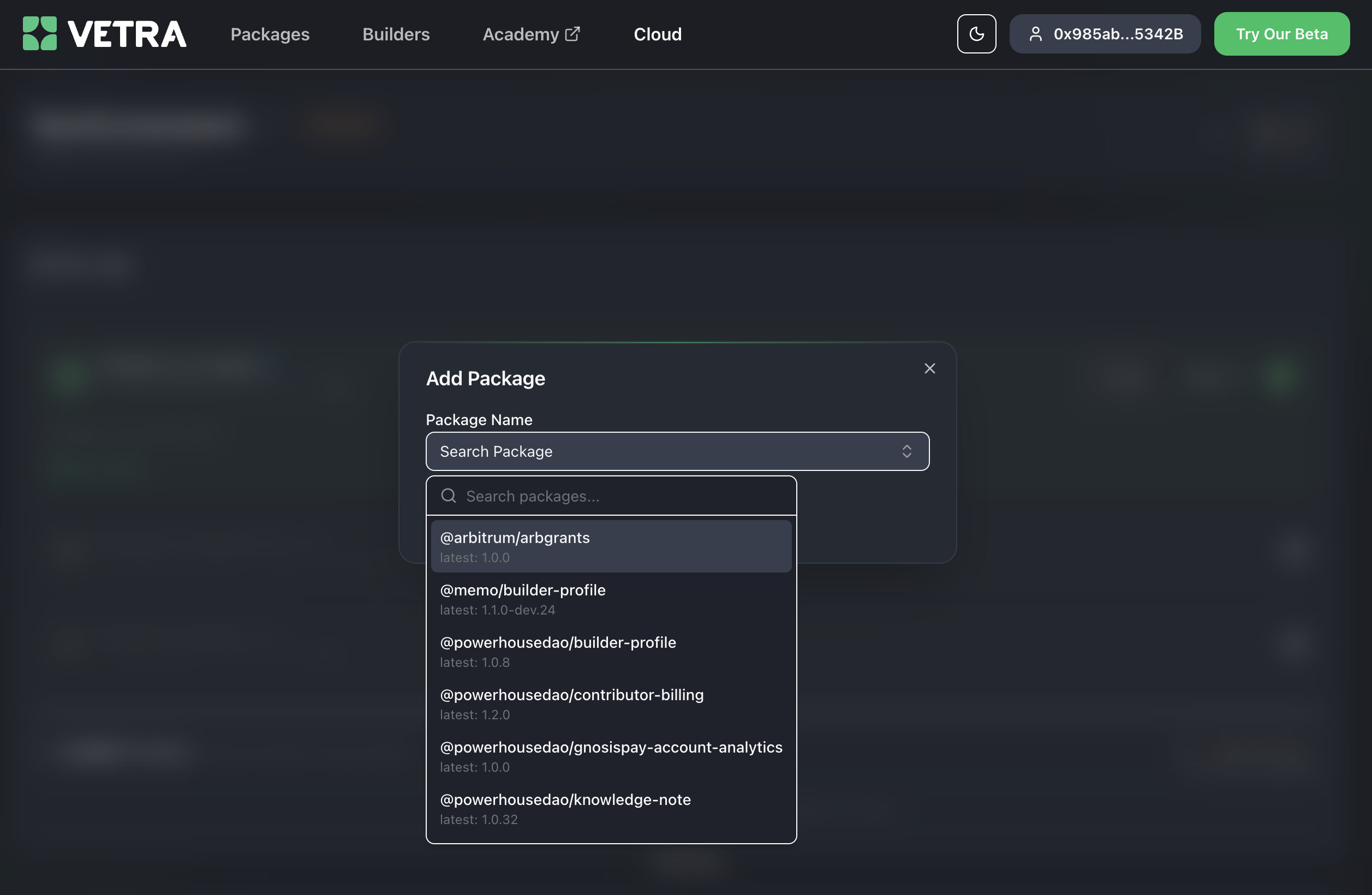
Once you select a package, a Pending change banner appears at the bottom. Click Approve to apply the change and redeploy your environment.
Next Steps
Once your environment is running you can point your local ph CLI at it, or share the Connect URL with collaborators so they can start working with your document models right away.
To publish your own packages to the registry, see the Publishing Packages guide.