Build the ChatRoom editor
:::tip Tutorial Repository 📦 Reference Code: chatroom-demo
This tutorial covers building the ChatRoom editor:
- Editor Scaffolding: Generating the editor template with
ph generate --editor - Component Implementation: Building a complete, interactive chat UI with components
Explore the complete implementation in the editors/chat-room-editor/ directory.
:::
📖 How to use this tutorial
This tutorial shows building from generated scaffolding to a complete chat UI.
Compare your generated editor
# Compare generated scaffolding with the reference
git diff tutorial/main -- editors/chat-room-editor/

# View the generated editor template
git show tutorial/main:editors/chat-room-editor/editor.tsx
Browse the complete implementation
Explore the production-ready component structure:
# List all components in the reference
git ls-tree -r --name-only tutorial/main editors/chat-room-editor/components/

# View a specific component
git show tutorial/main:editors/chat-room-editor/components/ChatRoom/ChatRoom.tsx
Visual comparison with GitHub Desktop
After committing your editor code:
- Branch menu → "Compare to Branch..."
- Select
tutorial/main - See all your custom components vs. the reference implementation
See step 1 for detailed GitHub Desktop instructions.
In this chapter we will continue with the interface or editor implementation of the ChatRoom document model. This means you will create a user interface for the ChatRoom document model which will be used to visualize your chatroom, send messages, and react with emojis.
Add a document editor specification in Vetra Studio
Go back to Vetra Studio, if you need to relaunch Vetra, launch it with Vetra --watch so it loads all existing local documents. Click the 'Add new specification' button in the User Experiences column under 'Editors'. This will create an editor template for your document model.
Give the editor the name chat-room-editor and select the correct document model. In our case that's the powerhouse/chat-room.
You'll see that the terminal in which you are running Vetra mentions
ℹ [Vetra] 🔄 Starting editor generation for: chat-room-editor
       added: editors/chat-room-editor/components/EditName.tsx
       added: editors/chat-room-editor/editor.tsx
       FORCED: editors/chat-room-editor/module.ts
ℹ [Vetra] ✅ Editor generation completed successfully for: chat-room-editor
Once complete, you'll have a new directory structure:
editors/chat-room-editor/
├── components/
│   └── EditName.tsx          # Auto-generated component for editing document name
├── editor.tsx                # Main editor component (to be customized)
└── module.ts                 # Editor module configuration
Navigate to the editors/chat-room-editor/editor.tsx file and open it in your editor. You'll see a basic template ready for customization.
Editor implementation options
When building your editor component within the Powerhouse ecosystem, you have several options for styling:
- Default HTML Styling: Standard HTML tags will render with default styles offered through the boilerplate.
- Tailwind CSS: Vetra Studio comes with Tailwind CSS integrated. You can directly use Tailwind utility classes.
- Custom CSS Files: You can import traditional CSS files to apply custom styles.
Vetra Studio Preview provides a dynamic local environment. By running ph vetra --watch, you can visualize your components instantly as you build them.
Build the editor with components
We'll build the editor using a component-based approach for better organization and reusability.
Component-based architecture
The ChatRoom editor uses a modular component structure. Each component has its own folder with an index.ts file for clean exports:
editors/chat-room-editor/
├── components/
│   ├── Avatar/              # User avatar display
│   │   ├── Avatar.tsx
│   │   └── index.ts
│   ├── ChatRoom/            # Main chat container
│   │   ├── ChatRoom.tsx
│   │   └── index.ts
│   ├── Header/              # Chat header with editable title/description
│   │   ├── EditableLabel.tsx
│   │   ├── Header.tsx
│   │   └── index.ts
│   ├── Message/             # Individual message bubble
│   │   ├── Message.tsx
│   │   └── index.ts
│   ├── MessageItem/         # Message with avatar and reaction dropdown
│   │   ├── MessageItem.tsx
│   │   └── index.ts
│   ├── Reaction/            # Emoji reaction display
│   │   ├── Reaction.tsx
│   │   └── index.ts
│   ├── TextInput/           # Message input field
│   │   ├── SendIcon.tsx
│   │   ├── TextInput.tsx
│   │   └── index.ts
│   └── index.ts             # Central exports
├── editor.tsx               # Main editor component
├── utils.ts                 # Utility functions for data mapping
└── module.ts                # Editor module configuration
Copy components from the reference repository
Download the repository of the chatroom-demo as a zip file from https://github.com/powerhouse-inc/chatroom-demo and navigate to editors/chat-room-editor/ to copy the following:
- The entire
components/folder - Contains all UI components - The
utils.tsfile - Contains utility functions for emoji mapping
Here's what each component does:
| Component | Purpose |
|---|---|
Avatar | Displays a user avatar image or a deterministic emoji based on the username |
ChatRoom | Main container that orchestrates the header, messages list, and input field |
Header | Shows the chat title and description with inline editing capability |
EditableLabel | Reusable component for inline text editing with edit/cancel icons |
Message | Renders a single message bubble with styling based on the sender |
MessageItem | Wraps Message with Avatar and adds a reaction dropdown menu |
Reaction | Displays an emoji reaction with a count of users who reacted |
TextInput | Input field for composing and sending new messages |
The utils.ts file
The utils.ts file contains helper functions for mapping between document model types and component props:
View utils.ts code
import type {
  MessageProps,
  ReactionMap,
} from "./components/Message/Message.js";
import type {
  Message,
  ReactionType,
} from "../../document-models/chat-room/gen/schema/types.js";

const emojis = [
  "😀",
  "😂",
  "🤣",
  "😍",
  "😎",
  "😊",
  "🙃",
  "😇",
  "🤔",
  "🥳",
  "🤯",
  "🤗",
  "😱",
  "👻",
  "🎃",
  "🐱",
  "🐶",
  "🐹",
  "🦊",
  "🐻",
  "🐼",
  "🐨",
  "🐯",
  "🦁",
  "🐸",
  "🐵",
  "🐔",
  "🐧",
  "🐦",
  "🐤",
  "🐝",
  "🐞",
  "🐟",
  "🐬",
  "🐳",
  "🦋",
  "🌺",
  "🌸",
  "🌼",
  "🍀",
];

export function getEmojiFromString(input: string): string {
  function hashString(str: string): number {
    let hash = 0;
    for (let i = 0; i < str.length; i++) {
      const char = str.charCodeAt(i);
      hash = (hash << 5) - hash + char;
      hash |= 0;
    }
    return Math.abs(hash);
  }

  const hash = hashString(input);
  return emojis[hash % emojis.length];
}

export const reactionTypeToEmoji = (reactionType: ReactionType): string => {
  switch (reactionType) {
    case "HEART":
      return "❤️";
    case "THUMBS_UP":
      return "👍";
    case "THUMBS_DOWN":
      return "👎";
    case "LAUGH":
      return "😂";
    case "CRY":
      return "😢";
    default:
      return "❤️";
  }
};

export const reactionTypeToReactionKey = (
  reactionType: ReactionType,
): keyof ReactionMap => {
  switch (reactionType) {
    case "HEART":
      return "heart";
    case "THUMBS_UP":
      return "thumbsUp";
    case "THUMBS_DOWN":
      return "thumbsDown";
    case "LAUGH":
      return "laughing";
    case "CRY":
      return "cry";
    default:
      return "heart";
  }
};

export const reactionKeyToReactionType = (
  reactionKey: string,
): ReactionType => {
  switch (reactionKey) {
    case "heart":
      return "HEART";
    case "thumbsUp":
      return "THUMBS_UP";
    case "thumbsDown":
      return "THUMBS_DOWN";
    case "laughing":
      return "LAUGH";
    case "cry":
      return "CRY";
    default:
      return "HEART";
  }
};

export const mapReactions = (
  reactions: Message["reactions"],
): MessageProps["reactions"] => {
  return (reactions || [])
    .map((reaction) => ({
      emoji: reactionTypeToEmoji(reaction.type),
      reactedBy: reaction.reactedBy,
      type: reactionTypeToReactionKey(reaction.type),
    }))
    .filter((reaction) => reaction.reactedBy.length > 0);
};
The main editor.tsx file
The main editor.tsx file connects your document model to the UI components. Replace the generated scaffolding with the code underneath:
View editor.tsx code
import { generateId } from "document-model/core";
import { useUser } from "@powerhousedao/reactor-browser/connect";
import { useSelectedChatRoomDocument } from "../../document-models/chat-room/hooks.js";
import {
  addMessage,
  addEmojiReaction,
  removeEmojiReaction,
  editChatName,
  editChatDescription,
} from "../../document-models/chat-room/gen/creators.js";
import {
  ChatRoom,
  type ChatRoomProps,
  type MessageProps,
} from "./components/index.js";
import { reactionKeyToReactionType, mapReactions } from "./utils.js";

export default function Editor() {
  const [document, dispatch] = useSelectedChatRoomDocument();
  const user = useUser();

  const disableChatRoom = !user;

  if (!document) {
    return <div>Loading...</div>;
  }

  const messages: ChatRoomProps["messages"] =
    document.state.global.messages.map((message) => ({
      id: message.id,
      message: message.content || "",
      timestamp: message.sentAt,
      userName: message.sender.name || message.sender.id,
      imgUrl: message.sender.avatarUrl || undefined,
      isCurrentUser: message.sender.id === user?.address,
      reactions: mapReactions(message.reactions),
    }));

  const onSendMessage: ChatRoomProps["onSendMessage"] = (message) => {
    if (!message) {
      return;
    }

    dispatch(
      addMessage({
        messageId: generateId(),
        content: message,
        sender: {
          id: user?.address || "anon-user",
          name: user?.ens?.name || null,
          avatarUrl: user?.ens?.avatarUrl || null,
        },
        sentAt: new Date().toISOString(),
      }),
    );
  };

  const addReaction = (
    messageId: string,
    userId: string,
    reactionType: "HEART" | "THUMBS_UP" | "THUMBS_DOWN" | "LAUGH" | "CRY",
  ) => {
    dispatch(
      addEmojiReaction({
        messageId,
        reactedBy: userId,
        type: reactionType,
      }),
    );
  };

  const removeReaction = (
    messageId: string,
    userId: string,
    reactionType: "HEART" | "THUMBS_UP" | "THUMBS_DOWN" | "LAUGH" | "CRY",
  ) => {
    dispatch(
      removeEmojiReaction({
        messageId,
        senderId: userId,
        type: reactionType,
      }),
    );
  };

  const onClickReaction: MessageProps["onClickReaction"] = (reaction) => {
    const message = messages.find(
      (message) => message.id === reaction.messageId,
    );

    if (!message) {
      return;
    }

    const messageId = reaction.messageId;
    const reactionType = reactionKeyToReactionType(reaction.type);
    const currentUserId = user?.address || "anon-user";

    const existingReaction = message.reactions?.find(
      (r) => r.type === reaction.type,
    );

    if (existingReaction) {
      const dispatchAction = existingReaction.reactedBy.includes(currentUserId)
        ? removeReaction
        : addReaction;

      dispatchAction(messageId, currentUserId, reactionType);
    } else {
      addReaction(messageId, currentUserId, reactionType);
    }
  };

  const onSubmitTitle: ChatRoomProps["onSubmitTitle"] = (title) => {
    dispatch(editChatName({ name: title }));
  };

  const onSubmitDescription: ChatRoomProps["onSubmitDescription"] = (
    description,
  ) => {
    dispatch(editChatDescription({ description }));
  };

  return (
    <div
      style={{
        height: "calc(100vh - 140px)",
      }}
    >
      <ChatRoom
        description={
          document.state.global.description || "This is a chat room demo"
        }
        disabled={disableChatRoom}
        messages={messages}
        onClickReaction={onClickReaction}
        onSendMessage={onSendMessage}
        onSubmitDescription={onSubmitDescription}
        onSubmitTitle={onSubmitTitle}
        title={document.state.global.name || "Chat Room Demo"}
      />
    </div>
  );
}
What's happening here:
- We use
useSelectedChatRoomDocumenthook to get the document state and dispatch function - We use
useUserto get the current user information (for authentication) - We map the document's messages to props that our ChatRoom component expects
- We create handlers for sending messages, adding/removing reactions, and editing metadata
- We dispatch operations (
addMessage,addEmojiReaction, etc.) from our generated creators
:::info Key Concept: useSelectedChatRoomDocument hook
The useSelectedChatRoomDocument hook is generated by the Powerhouse CLI. It provides:
- The current document state (
document) - A dispatch function to send actions to the reducer
This hook connects your React components to the document model's state and operations. :::
Key components explained
MessageItem component
The MessageItem component wraps the Message component with an avatar and a reaction dropdown menu. It uses the @powerhousedao/design-system package for the dropdown:
import { Message, type MessageProps } from "../Message/Message.js";
import { Avatar, type AvatarProps } from "../Avatar/Avatar.js";
import { useState } from "react";
import {
  DropdownMenu,
  DropdownMenuContent,
  DropdownMenuTrigger,
  DropdownMenuItem,
} from "@powerhousedao/design-system";

export type MessageItemProps = MessageProps & AvatarProps;

export const reactionMap = {
  cry: "😢",
  laughing: "😂",
  heart: "❤️",
  thumbsDown: "👎",
  thumbsUp: "👍",
};

export const MessageItem: React.FC<MessageItemProps> = (props) => {
  const { imgUrl, userName, isCurrentUser, ...messageProps } = props;
  const { disabled = false } = messageProps;

  const [isHovered, setIsHovered] = useState(false);
  const [open, setOpen] = useState(false);

  // ... hover and dropdown logic

  return (
    <div style={{ display: "flex", gap: "2px", alignItems: "flex-end" }}>
      <Avatar imgUrl={imgUrl} userName={userName} />
      <DropdownMenu>
        <Message isCurrentUser={isCurrentUser} userName={userName} {...messageProps} />
        <DropdownMenuTrigger>🫥</DropdownMenuTrigger>
        <DropdownMenuContent>
          {Object.entries(reactionMap).map(([key, emoji]) => (
            <DropdownMenuItem key={key} onClick={() => /* handle reaction */}>
              {emoji}
            </DropdownMenuItem>
          ))}
        </DropdownMenuContent>
      </DropdownMenu>
    </div>
  );
};
EditableLabel component
The EditableLabel component enables inline editing of text fields (like the chat title and description):
export const EditableLabel: React.FC<EditableLabelProps> = ({
  label: initialLabel,
  onSubmit,
  style,
}) => {
  const [hover, setHover] = useState(false);
  const [isEditing, setIsEditing] = useState(false);
  const [label, setLabel] = useState(initialLabel);

  // Toggle between read mode (displaying text) and write mode (input field)
  // Press Enter to submit, Escape to cancel

  return (
    <div onMouseEnter={() => setHover(true)} onMouseLeave={() => setHover(false)}>
      {isEditing ? (
        <input value={label} onChange={(e) => setLabel(e.target.value)} />
      ) : (
        <h1>{label}</h1>
      )}
      {(hover || isEditing) && <EditIcon onClick={() => setIsEditing(true)} />}
    </div>
  );
};
Test your editor
Now you can run Vetra Studio Preview and see the ChatRoom editor in action:
ph vetra --watch
In Vetra Studio, in the bottom right corner you'll find a new Document Model that you can create: ChatRoom. Click on it to create a new ChatRoom document.
:::warning Authentication Required A warning will prompt you to login before you can send messages. Login with an Ethereum address via Renown to start sending messages. :::
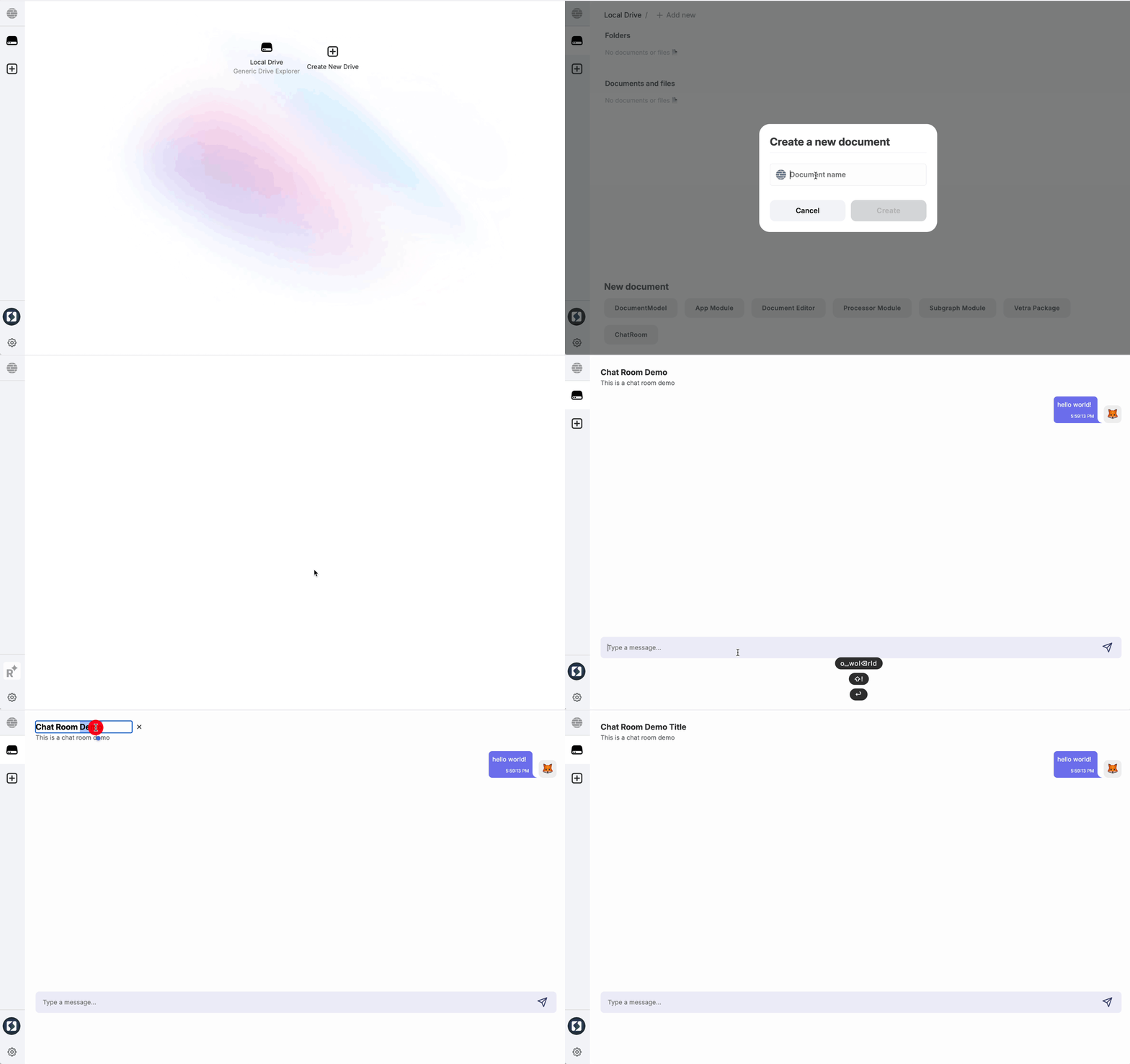
Try it out:
- Create a new ChatRoom document
- Login with your Ethereum wallet
- Send messages using the input field
- React to messages with emoji reactions
- Click the chat name or description to edit them
Congratulations! 🎉
If you managed to follow this tutorial until this point, you have successfully implemented the ChatRoom document model with its reducer operations and editor.
Compare with the reference implementation
The tutorial repository includes the complete ChatRoom editor with all components:
# See the ChatRoom component implementation
git show tutorial/main:editors/chat-room-editor/components/ChatRoom/ChatRoom.tsx

# Explore the MessageItem component
git show tutorial/main:editors/chat-room-editor/components/MessageItem/MessageItem.tsx

# View the EditableLabel component
git show tutorial/main:editors/chat-room-editor/components/Header/EditableLabel.tsx

# Compare your implementation with the reference
git diff tutorial/main -- editors/chat-room-editor/
Key concepts learned
In this tutorial you've learned:
✅ Component-based architecture - Breaking down complex UIs into reusable components
✅ Document model hooks - Using useSelectedChatRoomDocument to connect React to your document state
✅ User authentication - Using useUser hook for wallet-based authentication
✅ Action dispatching - How to dispatch operations from your UI
✅ Type-safe development - Leveraging TypeScript with generated types from your SDL
✅ Real-time collaboration - Building features that work across multiple users